Another Alien created and animated with Spritesomething.

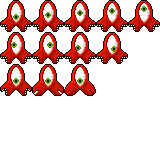
Another Alien created and animated with Spritesomething.
Here’s a pixel art alien created and animated with sprite something.
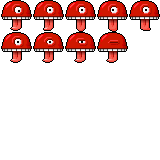

These Aliens were created as 32×32 pixel tiles with Spritesomething.
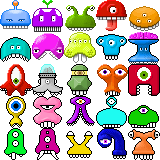
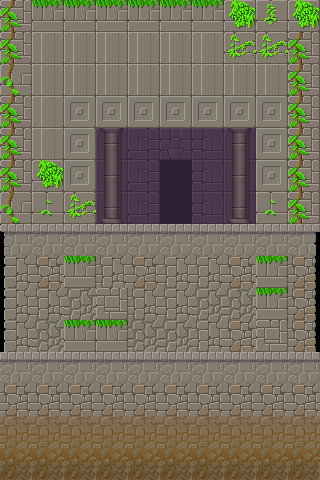
Here’s a set of tiles I created with Spritesomething on my iPad on a trip.
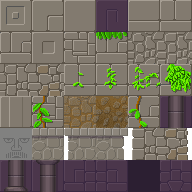
Here’s an image created with the tiles. Could be used in a platform game as the background.
Here’s a great app for drawing pixel art on your iPhone/iPod and iPad.
http://terriblegames.com/spriteSomething/
I highly recommend this. I have been playing with it for hours the last few weeks. It’s really fun and easy to use. It includes a lot o great features for making games. Draw anywhere you have iPhone/iPod and or iPad, at the cafe on the train or on the bus. Draw a quick icon of a beer bottle or martini glass at the pub with your drink as a model! Draw a quick pixel art portrait of your favorite bartender with one hand and your *drink in the other. (I don’t recommend drawing while under the influence of drugs or alcohol. All references to drinks in this article are fruit juice only.)
Buttons are common, every app will use them. They can be as simple as a shape or image that you tap, which is simple to program. For best user experience buttons should change their look when they are tapped, this effect requires more programming. Luckily Corona’s widget library provides an easy to use full featured button. The widget library makes it easy to create a button with interactive features.
The widget.newButton() method creates a button. The default look of the button is determined by the widget theme. Alternately widget also allows you to use images or even a sprite sheet to create buttons.
The button has two states default and over. The default state is what the button looks like with no interaction. The over state is what the button will look like when your finger is in contact with the button. Note the over state on touch devices will usually be mostly hidden beneath your finger. There is no hover state on touch devices which makes it important to design buttons that invite user interaction.
The look of the button is set by the widget theme. You can also use an image or a sprite sheet instead.
The button widget has a label. You can set the font and font size for the label. You can also set the color of the label in both the default and over state. You can use the label with images and sprite sheet, or have no label in the case where the label might be incorporated into an image.
The first step to use the “widget” module is to include it in your project with:
local widget = require( "widget" )
Next create a button using widget.newButton( options ). Options is a table containing properties and values describing the button you are going to make.
For example the following would create a button 160 pixels wide, 40 pixels tall, the label would say “Tap”. A tap and release would be handled by the function on_button.
local button = widget.newButton( {
label="Tap",
width=160,
 height=40,
 onRelease=on_button
 } )
This button would call the on_button function when it is tapped. You might define this event handler in this way:
local function on_button()
 print("Button Released")
end
Remember you’d need to define the handler above button definition. All three pieces together might look like this:
local widget = require "widget"

local function on_button(event)
 if event.phase == "release" then
 print("Button Released")
 end
end

local button = widget.newButton{id="b1",
 left=80,
 top=220,
 label="Tap",
 width=160,
 height=40,
 cornerRadius=12,
 onEvent=on_button
 }
For a full list of properties consult the Corona documentation here: http://developer.anscamobile.com/reference/index/widgetnewbutton